Edit tabs
Team
View and edit an individual squad within a club—such as the First Team, Reserves, B Team, U21s, or U18s. Change team reputation, and use the ⚡ menu to handle injuries, bans, unhappiness, and morale across the whole squad.
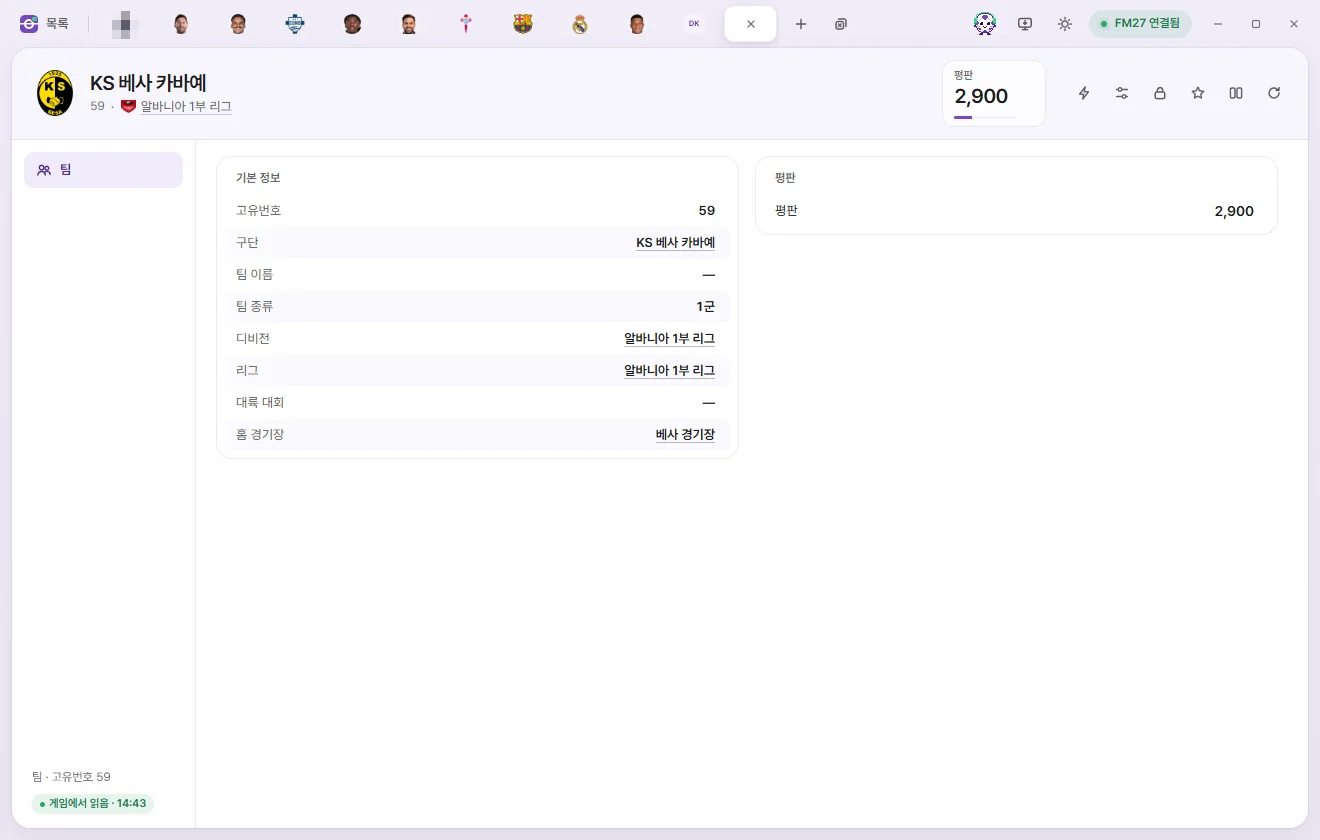
How to open
- Click a name in the Teams list.
- Click a squad table heading (such as First Team) on a Club tab's Squad page.
- Click a team in the Teams list on a Club tab's Info page.
- Click a team anywhere teams appear, such as a player's Competition Registration list.
If the team has its own dedicated name, that name is shown; otherwise it uses the club's name. Teams belonging to women's clubs appear in the women's team color.
Tab header
- Below the name, you'll see the Unique ID, Club, Team type, and League. Click any underlined name to open its tab.
- There is a single number card: Reputation (0–10000). Click it to type a number directly.
- The buttons on the right are ⚡ In-game editor actions, Presets, Locks, Bookmarks, Compare, and Reload from game. They work the same way as on the Player tab header.
Team page
| Field | What it does | Editable range |
|---|---|---|
| Unique ID | Read-only | |
| Club | Click to open the Club tab | Read-only |
| Team name | The team's own name (Empty if none) | Read-only |
| Team type | First Team, Reserves, B Team, U23, U21, U20, U19, U18 | Read-only |
| Division, League, Continental | Click to open the Competition tab | Read-only |
| Home stadium | Click to open the Stadium tab | Read-only |
| Reputation | Team reputation | 0–10000 |
The 'Manager' and 'Captain' columns from the Teams list appear only in the list view, not on this tab.
⚡ menu
The Team tab's ⚡ menu has two groups:
- All players: Remove all player injuries, Remove all player bans, Remove all player unhappiness, Change team morale
- Team: Improve team cohesion, Max tactical familiarity
See Game editor (⚡) for what each item does.