Tools
Presets
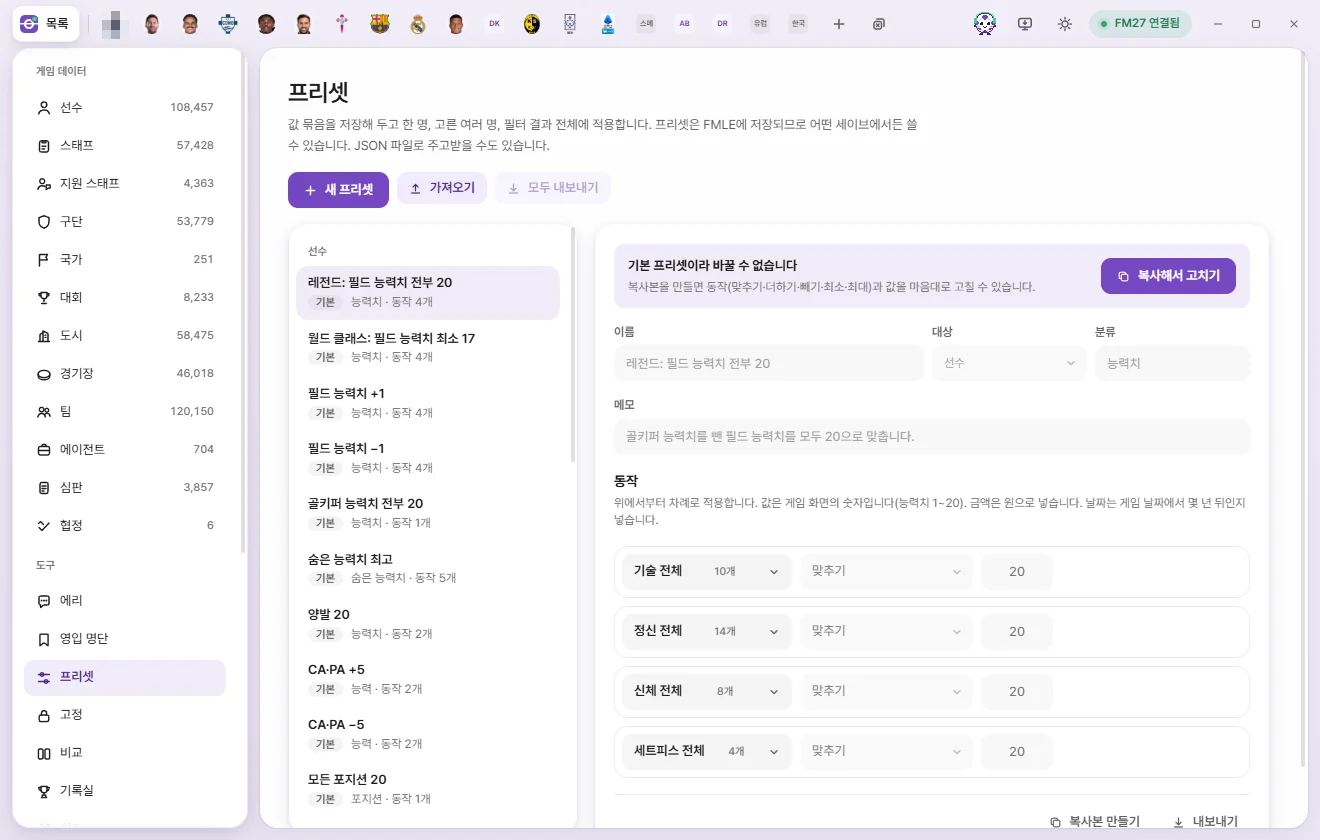
A preset bundles edits together—such as setting specific values—so you can reuse them anytime. Fill a single edit tab with one, or apply it straight to multiple people or your entire filtered results. Presets are saved in FMAX and work in any save.
What is a preset?
Each preset has one target type (such as Player, Staff, or Club) and one or more actions. An action tells FMAX what to do to a single field or a group of fields—for example, setting all Technical attributes to 20 or adding 5 to CA.
- Presets are saved in FMAX itself, so you can use them in any save.
- You can export and import them as JSON files to share with other players.
- Click Presets under Tools in the left sidebar to open this screen.
Two ways to apply: a single tab or multiple targets
When a preset writes to the game depends on where you apply it.
| Where you apply it | When it writes to the game | Undo |
|---|---|---|
| A single edit tab | Only updates the values shown in the tab. Click 'Save' to write them to the game | Nothing is written to the game until you click 'Save' |
| Multiple people (lists, right-click menu, club squad tables) | Writes straight to the game as soon as you click 'Apply' in the confirmation dialog | Click 'Revert' on the notice to undo once |
Applying in an edit tab
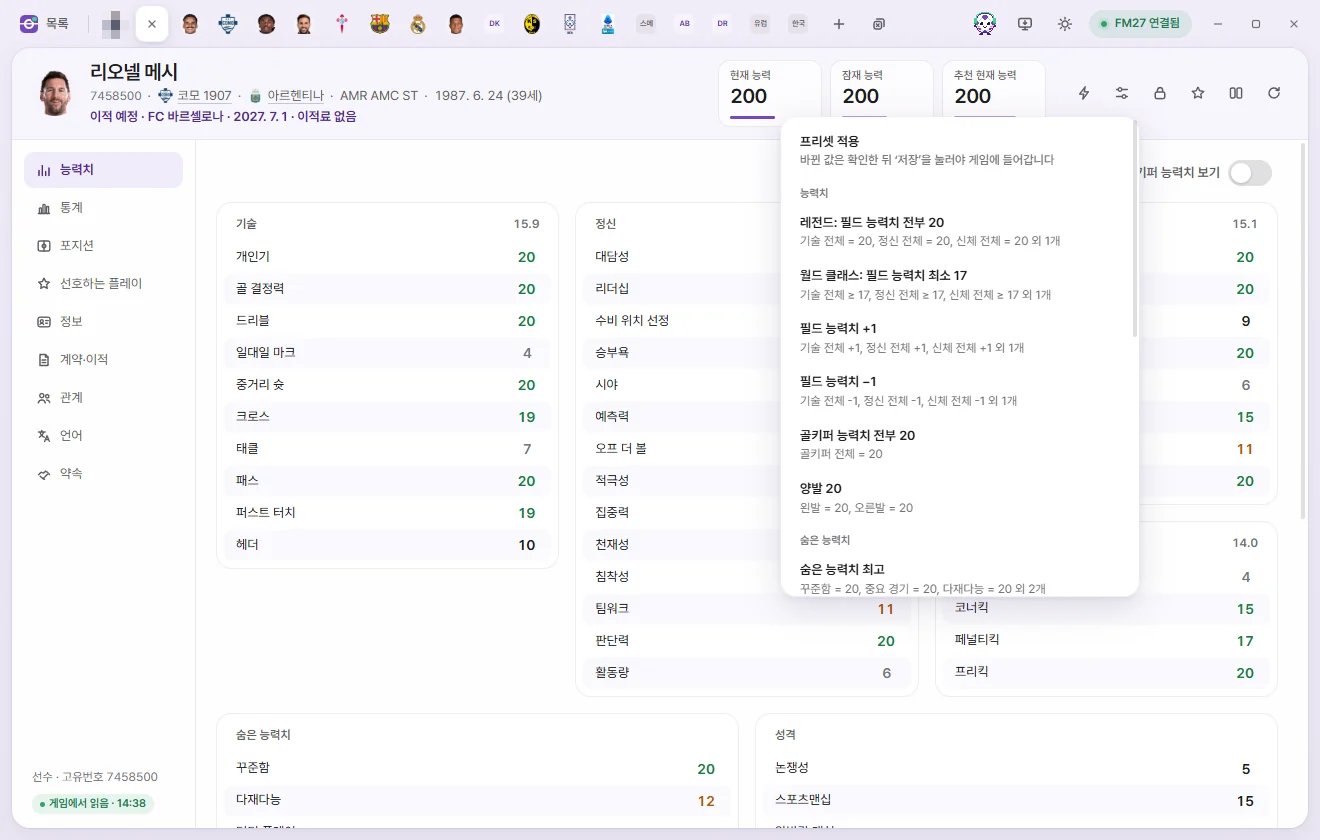
- Click Presets (the icon with two horizontal bars) in the top-right corner of the edit tab.
- Pick a preset from the menu. Only presets matching this tab's type appear, grouped by category.
- The values in the tab update so you can check what changed.
- Click 'Save' to write them to the game.
You can only apply a preset once the tab has finished reading from the game. If nothing would change, FMAX shows 'No values changed with "Name"'.
At the bottom of the menu are two more buttons:
- Create preset from current values: Opens a new preset in the Presets screen pre-filled with the values currently shown in this tab (including unsaved edits). Numeric fields such as attributes, personality, and positions are included, while money amounts, reputation, fitness, contract details, Overview, ability (CA & PA), appearance, and Player traits are left out. Its name defaults to 'Values of …' and its category to 'Templates'. Remove any rows you don't need and click 'Save' to keep it as a preset.
- Manage presets: Opens the Presets screen.
Applying to multiple people
You can apply a preset to multiple people from several places:
- After selecting multiple rows in a list, click 'Preset for N selected' in the bottom bar.
- After narrowing a list with filters or search (with nobody selected), click 'Preset for N results' in the bottom bar to apply it to every matching result.
- Right-click in a list → under 'Edit', choose 'Apply preset' or 'Apply custom edit'. Works on a single person or a multi-selection.
- Above the squad or staff table in a club tab, click 'Presets' to apply it to everyone in that table (Club).
The steps are the same whichever route you take:
- The menu header reads 'Apply preset to … · Writes to game'. Pick a preset.
- An 'Apply "Name" to N people' confirmation dialog appears, showing what the preset will do and noting that changes are written to the game immediately.
- Click 'Apply'. FMAX reads the current values from the game, calculates the new ones, and writes them back, showing 'Writing to game N / All' as it progresses.
- When finished, an 'Applied "Name" to N people' notice appears along with counts for anyone whose values already matched, failed, or could not be found in the game.
Revert: The notice includes a 'Revert' button for about 9 seconds. Click it to restore the values changed in this batch to what they were beforehand, followed by a 'Reverted "Name" N / All' notice. You can only undo the single most recent bulk apply, and any values changed in the meantime by the game or another edit are left untouched.
Any open tabs for those people automatically reload with the new values. If you apply a preset to a locked field, the lock updates to the new value too (Locks).
Apply custom edit
Build and run a one-off edit without saving a preset first.
- Click 'Apply custom edit' at the bottom of the bulk preset menu (or from the right-click menu).
- The Presets screen opens with a banner at the top: 'Choose actions to apply to …'.
- Use 'Add action' to set up the edits you want.
- Click 'Apply' in the banner to confirm and write straight to the game—you don't need to save it first. Click 'Save' if you also want to keep it as a preset.
- Click 'Cancel' in the banner to back out.
If you open a different save in the game after selecting your targets, FMAX stops and shows 'Save changed—nothing was applied'. Select your targets again in the current save.
List order
When you select a preset on the Presets screen, Move to top, Up and Down buttons appear under List order at the bottom. Click one to move that preset within the list of the same target type. A button is disabled when the preset is already at the top (or bottom), and no buttons appear if that type has only one preset. The order you set is saved in FMAX, and the Presets menus in edit tabs and for multiple people show presets in that same order.
Built-in presets
Presets included with FMAX out of the box, marked Built-in in the list.
| Target | Name | What it does |
|---|---|---|
| Player | Legend: all outfield attributes 20 | Sets all Technical, Mental, Physical, and Set Pieces attributes to 20 (Goalkeeping attributes stay as is) |
| Player | World-class: outfield attributes at least 17 | Raises only values below 17 in those same groups up to 17 |
| Player | Outfield attributes +1 | Adds 1 to every attribute in those groups |
| Player | Outfield attributes −1 | Subtracts 1 from every attribute in those groups |
| Player | All goalkeeping attributes 20 | Sets all Goalkeeping attributes to 20 |
| Player | Best hidden attributes | Consistency, Important Matches, and Versatility to 20; Dirtiness and Injury Proneness to 1 |
| Player | Both feet 20 | Left Foot and Right Foot to 20 |
| Player | CA & PA +5 | Adds 5 to Current Ability (CA) and Potential ability (PA) |
| Player | CA & PA −5 | Subtracts 5 from CA and PA |
| Player | All positions 20 | Sets everything in Position familiarity to 20 |
| Player / Staff | Model personality: personality 20, controversy 1 | Adaptability, Ambition, Loyalty, Pressure, Professionalism, Sportsmanship, and Temperament to 20; Controversy to 1 |
| Player | Recovery: condition & match sharpness 100% | Sets Condition and Match sharpness to 100%, and fatigue to 0. Does not clear injuries |
| Player | Encourage: max morale | Sets morale to maximum and fatigue to 0 |
| Player | Wear down: lowest morale & condition | Lowest morale, Condition 50%, Match sharpness 30%. Intended for opposing players |
| Staff | Max ability: CA & PA 200 | Sets CA and PA to 200 |
| Staff | All staff attributes 20 | Coaching, Mental, Knowledge, and Medical attributes to 20. Owner/board attributes (Interference, Patience, etc.) stay as is |
| Club | All facilities 20 | Sets all facility ratings to 20 |
| Club | Rich club: balance … | Raises the balance to £500M if it is below £500M (the amount in the name is shown in your chosen currency) |
| Club | Transfer budget …, weekly wage budget … | Transfer budget at least £300M, Weekly wage budget at least £5M |
| Club | Max club reputation | Reputation to 10,000 |
| Referee | All official attributes 20 | Sets all Official attributes to 20 |
| Competition | Max competition reputation | Reputation to 200 |
| Stadium | Capacity 100,000 | Raises Capacity and seated capacity to at least 100,000 |
Built-in presets cannot be edited. Selecting one shows 'Built-in presets cannot be edited' at the top alongside a 'Duplicate to edit' button. Click it to create 'Name (copy)', which you can edit freely.
Creating and editing presets
- Click 'New preset' at the top. A blank preset opens for the target type you were viewing.
- Fill in Name (up to 60 characters), Target (target type), Category (e.g. Attributes, up to 30 characters), and Notes (When to use this preset, up to 120 characters). Category becomes the group heading in preset menus.
- Click 'Add action' and pick a field. Use the box at the top to 'Search fields', or click 'All in group' next to a group heading to add every field in that group as a single action.
- Pick a mode and value for each action (see the table below).
- Click 'Save'. FMAX shows 'Saved "Name". Available in any save.'
If you edit a preset without saving, 'Unsaved changes' appears at the bottom. Opening another preset or creating a new one while changes are unsaved asks whether you want to discard them.
Once a preset has at least one action, its Target cannot be changed. Delete all actions first if you want to switch target types.
Action modes
| Mode | What it does |
|---|---|
| Set to | Sets the field to that exact number |
| Add or subtract (− to subtract) | Adds to the current value. Enter a negative number like −5 to subtract. Fill in the optional min–max range to keep the result within those bounds |
| At least | Raises the value only when it is currently lower than that number |
| At most | Lowers the value only when it is currently higher than that number |
| N years from today | For date fields (such as Contract expiry). Sets the date to N years after the current Game date (0–50 years) |
| At least N years from today | Pushes the date back to N years from today only if it is currently earlier than that |
- Actions run in order from top to bottom. If two actions target the same field, the second acts on the result of the first.
- Values match the numbers shown in the game (such as 1–20 for attributes), and results are clamped to each field's valid range.
- Money amounts use the currency chosen in Settings.
- People without a date in that field (such as Contract expiry for a free agent) are unaffected by date actions.
- Click the trash icon on the right side of an action to remove it.
Game editor actions and Prevent retirement
Below the regular fields in 'Add action', you can also add non-value actions:
- Game editor actions (apply immediately): For players—remove all injuries, bans, or unhappiness; freeze or unfreeze attributes; grant or remove a work permit; set or undo international retirement; mark military service as completed, exempt, or clear its record. For staff—change to female or change to male. The action row shows 'Writes to game' (Game editor).
- Add to prevent-retirement list under Live tweaks (Player / Staff): Adds the person to the Prevent retirement list on the Live tweaks screen. The action row shows 'Adds to list'. While that live tweak is turned on, FMAX clears any retirement plans. If 'Lift age limits too' is turned on, up to 128 players and 128 staff can be added, and anyone over the limit is counted as 'not added' in the notice.
The first time you apply a preset containing in-game editor actions, FMAX shows the same one-time 'Have you backed up your save?' prompt as the Game editor.
Duplicating, deleting, exporting, and importing
| Button | What it does |
|---|---|
| Duplicate | Copies the current preset as 'Name (copy)' and opens it. Click 'Save' to keep it |
| Delete | Permanently deletes a preset you created. Cannot be undone |
| Export | Saves this single preset to your Downloads folder as a JSON file |
| Export all | Saves every preset you created into one JSON file in your Downloads folder. Built-in presets are not included |
| Import | Picks a preset JSON file exported from FMAX and adds it to your presets |
- Exporting shows a 'Saved to Downloads folder' notice with a 'Show in folder' button to reveal the file.
- When importing, fields that don't exist in your current Game version are skipped with a notice ('Skipped N fields not in this game version'). If nothing can be imported, FMAX asks you to check that the file is a preset JSON exported from FMAX.
- Built-in presets can also be exported individually using 'Export'.