Basics
When changes take effect in the game
What waits for Save, what applies right away, what needs the game date to advance, what requires saving in FM27 to keep, and how to revert changes.
FMAX edits your running FM27 game directly, though when a change actually goes into the game depends on the feature you use. Here is how each one works.
At a glance
| What you do | When it enters the game | How to undo |
|---|---|---|
| Edits in an edit tab | When you click Save at the bottom of the tab or Save at the top (Ctrl+S) | Before saving: Revert button. After saving: edit the value back and save again |
| Preset values filled into an edit tab | When you click Save, as above | Same as above |
| Presets applied to multiple items from lists, right-click menus, or tables | Right away when you click Apply in the confirmation prompt | Once, via Revert in the notice |
| ⚡ In-game editor actions | Right away on confirmation | None |
| Live tweaks | Continuously while FMAX is running (mostly as the game date advances) | Turn off |
| Locks | While FMAX is running, re-applied whenever the game changes a value | Unlock |
| Shortlist, Bookmarks, Saved filters, creating presets | Never written to the game | — |
Whichever feature writes a value into the live game, you still need to save your game in FM27 for it to stay in your save file (below).
Saving in edit tabs
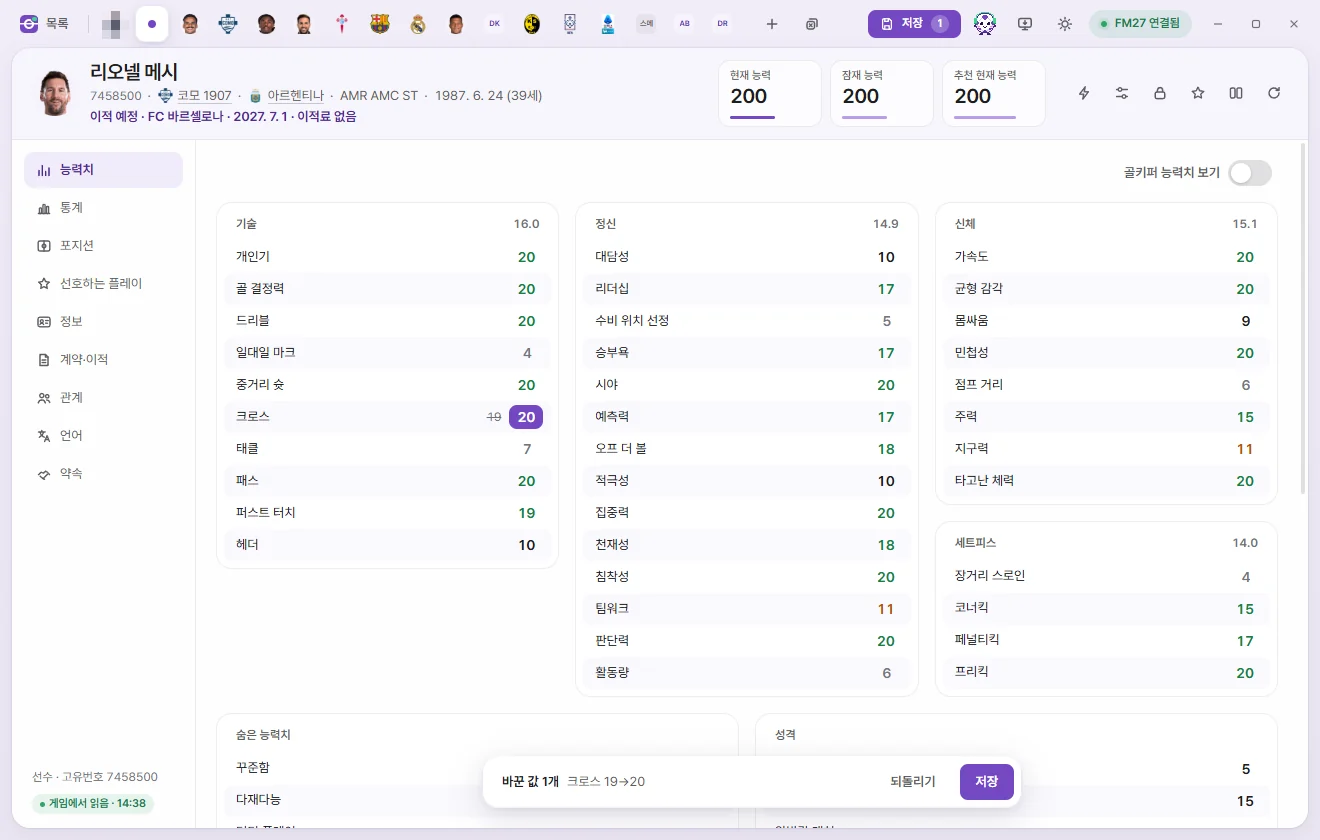
Changes you make inside an edit tab don't go straight into the game—they wait in that tab until you save.
- Edited rows are highlighted, and a bar appears at the bottom of the tab such as 2 changed values Crossing 19→20, Passing 17→18 (with '+N more' if you changed more than three). The bar has Revert and Save buttons.
- In the top tab bar, that tab shows a purple dot in place of its × button.
- At the top right, a Save button appears with the total count of pending edits across every open tab.
How to save
- Save at the bottom of the tab: Writes only the edits in this tab.
- Save at the top or Ctrl+S: Saves every tab with pending edits, one tab at a time. If nothing has changed, FMAX tells you there is nothing to save.
When you press Save, the bar shows 'Writing to game · Check current values → Writing → Reload':
- Check current values: Makes sure the game's values still match what FMAX originally read (If game values changed in the meantime).
- Writing: Writes your edited values into the game.
- Reload: Reads the values back from the game to confirm they match what was written.
When finished, FMAX shows 'Wrote 3 values to the game · Read back and verified', the updated fields briefly glow green, and an entry like 'Name Crossing 19 → 20' is added to 'Recent edits' in the sidebar.
If you use the top Save button across multiple tabs and one tab fails, FMAX notifies you ('1 tab could not be saved · Pending edits remain on Name') and leaves the failed tab's edits waiting in place.
When the Save button is disabled
| Button label | Meaning |
|---|---|
| Apply once connected | This tab's values weren't read from the currently running game, or the game disconnected afterwards. Once connected, click 'Reload from game' on the tab. Your pending edits stay intact. |
| No game | Not connected to the game. |
| Save (dimmed) | FMAX is currently reading from or writing to the game. Wait a moment. |
One-time backup prompt
The first time you save any of the following, FMAX asks once: 'Have you backed up your save?' Click 'Yes, backed up' to proceed, and FMAX won't ask again.
- Changing a player's Gender (Changing gender)
- Editing a player's Match appearance (Match appearance)
- Adding, editing, or removing records inside the game—such as names, Nationality, languages, an individual injury, homegrown status, Competition Registration, contract clauses, or Bans
- Nationality & City of birth on the info page (shares the same prompt as ⚡ In-game editor actions)
When adding or removing records, FMAX advises saving while the game is paused/idle rather than while the date is advancing.
What writes immediately
⚡ In-game editor actions
These are the actions under the ⚡ button in an edit tab or the ⚡ items in the right-click menu. Once confirmed, they take effect in the game right away without advancing the date. FMAX asks once for the first time whether you have backed up your save, and there is no undo in FMAX. See Game editor (⚡) for details.
Presets applied to multiple items
This covers 'Preset for 3 selected' and 'Preset for 120 results' in lists, 'Apply preset', 'Apply custom edit', '⚡ Quick actions', and '⚡ All club players' in the right-click menu, and 'Apply preset' in club tab tables.
- A confirmation dialog shows what will change and how many items are affected. Click Apply.
- FMAX reads the current values from the game ('Reading current values from game').
- Only values that actually change are written; items that already have the target value are skipped.
- A notice such as 'Applied "Preset Name" to 120 · Already matched 3 · Failed 0' appears with a Revert button for 9 seconds.
If the preset also contains ⚡ In-game editor actions, FMAX runs them one person at a time after writing the values. Those actions cannot be reverted.
Presets in an edit tab
Picking a preset from the Presets button in an edit tab's header simply fills those values into the tab so you can review them and press 'Save'. However, if the preset includes ⚡ In-game editor actions or Prevent retirement, that part runs immediately and a notice reminds you that 'N changed values require pressing "Save" to enter the game'.
Live tweaks and My manager options
While turned on, Live tweaks keep writing to the game for as long as FMAX is running—most run when the Game date advances. Clicking options under 'My manager options' on the Live tweaks screen writes to the game immediately, and those settings remain in the game even after you close FMAX.
Locks
Locks check your chosen fields at a regular interval (1 second by default) while FMAX is running and write the locked value back whenever the game changes it. Locking a field captures its game value at that moment; if you save a new value into a locked field, the lock updates to keep the new value.
What never writes to the game
Adding or removing people on a Shortlist, Bookmarks, filters and Saved filters, column choices, and creating or editing presets are stored only inside FMAX. Clicking 'Export' on a shortlist simply saves a file to FM27's shortlists folder without changing anything in the running game (Shortlist).
What takes effect when the game date advances
Values enter the game the moment you save or confirm, but FM27 only processes or displays some of them at specific points:
- Most Live tweaks: Run when the Game date advances. While the game sits idle, nothing happens. See Live tweaks for how each tweak works.
- Live tweak 'Show everyone in search': FM27 reads this setting when loading a save. After turning it on, save your game in FM27 and reload the save to see everyone.
- Match appearance: Takes effect the next time you enter a 3D match view.
- League rankings stats: Written as soon as you save, though FM27 recalculates standings after the next match.
- Season-end records (Settings): Logged each time one week passes in-game.
- Fields like a competition's VAR or Substitution rules whose info tooltip (ⓘ) notes that when they take effect hasn't been verified yet have not been confirmed as to when edited rules apply to already-scheduled fixtures.
⚡ In-game editor actions (transfers, removing injuries, and so on) take effect immediately without advancing the date.
Saving in FM27 to keep your changes
Values FMAX writes go into the live game in memory—not directly into your save file on disk.
Some features also work only while FMAX stays open:
- Live tweaks, Locks, Keep men’s team eligibility, Match appearance: Only work while FMAX is running, and stop when you close FMAX. Any normal game values they have already written stay in your save once you save in FM27.
- Live tweaks that temporarily patch Game code restore the original code when you turn them off or close FMAX normally.
- FMAX remembers which toggles you left on separately for each save. If 'Restore previous state on startup' is enabled in Settings, FMAX turns them back on the next time you open FMAX and load that save (What FMAX remembers per save).
Names changed with Korean names (available when FMAX is set to Korean) use the game's built-in naming system, so saving in FM27 keeps them in your save file.
If a write fails with a notice warning that only some values may have changed, double-check those values before saving your game in FM27.
If game values changed in the meantime
FMAX writes Only if read values haven’t changed. If the game date advanced after you opened the tab, or you changed the same field inside FM27, FMAX stops instead of overwriting it blindly.
- Notice: 'Game values changed in the meantime, so nothing was written · Reloaded from game. Your pending edits were kept.'
- The tab reloads fresh values from the game and compares your pending edits against them, dropping any edit where the game already matches your target value.
- Check the updated values and press Save again.
Presets applied to multiple items read current values right before writing and run the same check on each person.
Other notices that can appear when saving:
| Notice | Meaning and what to do |
|---|---|
| Couldn’t find it in the game, so nothing was written | You reloaded a save, or more than one item shares the same unique ID. Reload the tab. |
| Values read back after writing didn’t match | The screen was updated with the values read back from the game. Check the values. |
| Write failed, so original values were restored | Game values were left unchanged. |
| Failed while writing to the game | Some values may have changed while others didn't. Check the values before saving your game in FM27. |
| Some values can’t be written | A value is out of range or writing to that field hasn't been verified yet. |
| No permission to write to the game | If you launched FM27 as administrator, run FMAX as administrator too. |
| Not connected to the game, so nothing was written | FM27 closed or is busy loading a save. Try again once reconnected. |
Whenever the game disconnects or you switch saves, open tabs switch to 'Last read values' and cannot be edited or saved. Click 'Reload from game' on the tab once reconnected.
Reverting changes
Before saving
- Revert on the bottom bar of a tab: Resets every edited value in that tab back to how it was.
- Setting an individual field back to its original number removes it from the pending edits list.
- Pressing Esc while editing a field restores the value it had before you started typing.
- Closing a tab discards its unsaved edits, though you can bring both the tab and its edits back via Reopen in the notice or Ctrl+Shift+T (Tabs and quick open).
After saving
- Values saved in an edit tab: There is no Revert button. Edit the value back and save again—'Recent edits' in the sidebar keeps a record of the old value.
- Presets applied to multiple items: Click Revert in the notice to roll back the last batch to their previous values. This works once and leaves alone any value the game has already changed since. ⚡ actions inside a preset are not reverted.
- ⚡ In-game editor actions: Cannot be undone. Where an opposite action exists—such as Freeze attributes ↔ Unfreeze attributes—run that instead.
- Live tweaks & Locks: Turning a tweak off or unlocking a field stops FMAX from writing it from that point on; values already written stay as they are.
- Korean names: Click 'Revert to original names' on the Korean names screen to restore only the names FMAX changed.