Game editor
Game editor (⚡)
The ⚡ button at the top of edit tabs runs FM's built-in editor actions—transfers and loans, clearing injuries and unhappiness, terminating contracts, adding homegrown status, and more—straight from FMAX. Once confirmed, changes apply to the game immediately without advancing the date, and cannot be undone.
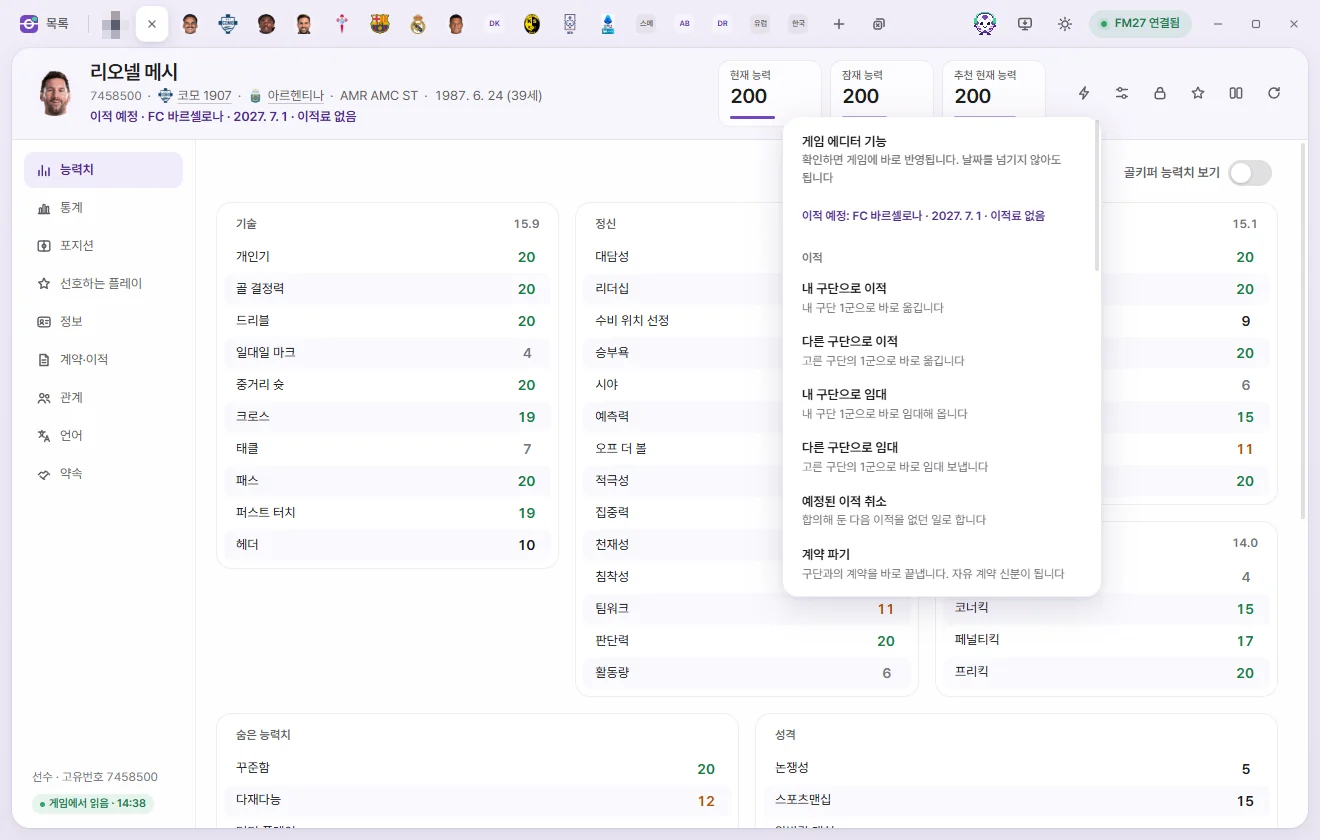
What are in-game editor actions?
FM27 has its own In-Game Editor (a paid add-on). FMAX's ⚡ menu does the same jobs, but instead of going through the In-Game Editor, it runs the game's own routines directly—so you can use it even if you haven't bought the In-Game Editor.
- Changes apply right away. As soon as you click 'Apply now' in the confirmation prompt, the game updates on the spot. You don't need to advance the date or click 'Save'.
- They cannot be undone. FMAX has no 'Revert' for these actions. Where an opposite action exists (Freeze attributes ↔ Unfreeze attributes, Grant work permit ↔ Remove work permit, and so on), simply run the opposite action instead.
- No In-Game Editor usage is recorded. Because FMAX doesn't go through the In-Game Editor, your save isn't marked as having used it.
- Use them while the game is stopped. As the first-time confirmation prompt notes, run these actions when the game is paused on a screen rather than while days are advancing.
Where to find it
- The ⚡ button at the top right of an edit tab (labelled 'In-game editor actions'). It appears only on the Player, Staff, Team, Club, and My manager tabs—not on other tabs such as Competition, Nation, or City.
- Right-click menus in lists also include a group starting with '⚡'. Right-clicking a single person opens their tab and runs the action just as if you picked it from the ⚡ menu. Selecting multiple people and right-clicking shows the '⚡ Quick actions' group (Applying to multiple people at once). For the full right-click menu, see Tabs, quick open, and right-click menus.
- To open the My manager tab, click your manager's name under 'My manager & club' on the left.
The ⚡ button is available only while FMAX is connected to the game and after the tab has read its data from the game. If FMAX isn't connected or is busy writing something else, it shows 'Not available right now'.
How to use it
- Open a Player, Staff, Team, Club, or My manager tab.
- Click the ⚡ button and choose an action from the menu.
- If the action needs extra details (such as a destination club, homegrown club, or morale level), pick them in the next menu or terms window.
- When you use it for the first time, FMAX asks 'Have you backed up your save?' Click 'Yes, backed up' and it won't ask again.
- Every action shows a confirmation prompt titled 'Name · Action', explaining what will change and reminding you that it cannot be undone. Click 'Apply now' to run it, or cancel to leave everything untouched.
- When done, a '…: Applied to game' notice appears and the tab redraws with the updated values. The action is also logged under 'Recent edits' on the left as 'Game editor · <action name>'.
For major actions—such as transfers, terminating a contract, or national team changes—the confirm button is red.
'Upcoming transfer' and 'Set to retire' under the name
On the Player, Staff, and My manager tabs, any scheduled future events in the game appear below the person's name (only when present).
- Upcoming transfer · Club · Date · Transfer fee: An agreed future move. Moves agreed on a free at the end of a contract show 'No fee'. This same line also appears at the top of the ⚡ menu.
- Set to retire · Date: The retirement date set by the game (for players and staff).
Player tab menu
| Group | Action | What it does |
|---|---|---|
| Transfer | Move to my club | Moves them straight to your club's first team. Opens the transfer terms window |
| Transfer | Move to another club | Moves them straight to the chosen club's first team. Opens the transfer terms window |
| Transfer | Loan to my club | Brings them straight to your club's first team on loan. Opens the loan terms window |
| Transfer | Loan to another club | Sends them straight on loan to the chosen club's first team. Opens the loan terms window |
| Transfer | Cancel future transfer | Cancels an agreed upcoming transfer. Shown only when a future transfer is scheduled |
| Transfer | Terminate contract | Ends their club contract right away and makes them a free agent. For a player out on loan, the menu item changes to End loan (terminate contract)—only the loan ends, and they return to their parent club |
| Status | Remove all injuries | Heals all injuries and sets condition and match sharpness to 100% |
| Status | Remove all bans | Clears all current bans |
| Status | Remove all unhappiness | Clears all current unhappiness |
| Record | Add homegrown status | Marks the player as homegrown at a club or in a nation. Choose from 9 rules |
| Record | Count as EU player | Adds citizenship of an EU, EEA, or EFTA nation so they count as a European player. They cannot be called up by that nation |
| Record | Freeze attributes | Stops attributes from rising or falling |
| Record | Unfreeze attributes | Allows attributes to change again |
| Record | Grant work permit | Grants a work permit for the country they work in |
| Record | Remove work permit | Removes their current work permit |
| Nationality & birth | Change nationality | Changes their primary nationality to the chosen nation. The game also updates their name records to match |
| Nationality & birth | Change city of birth | Changes their city of birth to the chosen city |
| International & service | International retirement | Marks them as retired from international football. Sets the retirement date to today |
| International & service | Cancel international retirement | Cancels their international retirement. They can be called up again |
| International & service | Mark military service done | Records their military service as completed |
| International & service | Mark military service exempt | Records them as exempt from military service |
| International & service | Clear military service record | Clears their completed or exempt military service record |
| Retirement | Change retirement date | Moves their scheduled retirement date to the date you pick. Shown only when they are set to retire |
The menu only shows options that fit the player's current state.
- 'International retirement' appears only for players who haven't retired internationally; 'Cancel international retirement' appears only for those who have.
- The three military service options appear only when there is something to change. Editing a player's military service record does not end active duty if they are currently serving.
- Both 'to my club' options appear only when you manage a club—not if you are unemployed.
- When a player is out on loan, 'Terminate contract' appears as End loan (terminate contract). Running it ends only the loan while leaving their parent-club contract intact, sending the player back to their parent club. This works the same whether you loaned the player out or brought them in on loan—use it whenever you want to terminate a loan or recall someone early.
Staff tab menu
| Group | Action | What it does |
|---|---|---|
| Transfer | Move to my club | Moves them to your club. Choose a job first, then set the terms |
| Transfer | Move to another club | Moves them to the chosen club. Choose a job first, then set the terms |
| Transfer | Terminate contract | Ends their club contract right away |
| National team | Add to national team | Joins the chosen national team right away in the chosen job |
| National team | Terminate national team contract | Ends their national team contract right away |
| Personal | Change nationality | Changes their primary nationality to the chosen nation |
| Personal | Change city of birth | Changes their city of birth to the chosen city |
| Personal | Change to female / Change to male | Changes the staff member's gender. Only the opposite of their current gender is shown |
| Retirement | Change retirement date | Shown only when they are set to retire |
Team tab menu
Actions on the Team tab apply to every player contracted to this team.
| Group | Action | What it does |
|---|---|---|
| All players | Remove all player injuries | Heals every player contracted to this team and sets condition and match sharpness to 100% |
| All players | Remove all player bans | Clears all bans for every player contracted to this team |
| All players | Remove all player unhappiness | Clears all unhappiness for every player contracted to this team |
| All players | Change team morale | Sets morale for every player contracted to the team to one of 20 levels |
| Team | Improve team cohesion | Boosts team cohesion, matching the In-Game Editor's team cohesion action |
| Team | Max tactical familiarity | Makes every player fully familiar with the team’s tactics |
When finished, the notice also reports 'Applied to N players'.
Change team morale lets you choose from 20 levels, from '20. Perfect' down to '1. Abysmal', with 20 as the highest. The game clamps each player within the range it allows for them.
Club tab menu
| Group | Action | What it does |
|---|---|---|
| Club | Use licensed kits | Uses official licensed kits for the club |
| Club | Don’t use licensed kits | Doesn’t use official licensed kits |
| Objectives | Remove board objective | Removes a chosen objective set by the board |
| Objectives | Remove supporter objective | Removes a chosen supporter objective |
Removing an objective reads the club's current objectives from the game and lists them. Recognised objectives appear by name—such as 'Youth Development', 'Possession football', or 'Sign high-reputation players'—while unrecognised ones appear as 'Objective type <number>'. Objectives tied to a specific player or club include their name alongside it. Pick one to open the confirmation prompt.
Right-clicking a club also shows the '⚡ All club players' group: Remove all player injuries, Remove all player bans, and Remove all player unhappiness. These apply to every player at the club at once (Applying to multiple people at once).
My manager tab menu
| Group | Action | What it does |
|---|---|---|
| Manager | Become Unsackable (On / Turn off) | Stops the board from sacking this manager—the same as the toggle of the same name in the In-Game Editor |
| Manager | Terminate contract | Ends their club contract right away. They become unemployed |
| Manager | Terminate national team contract | Ends their national team manager contract right away |
| Manager | Move to another club | Moves them straight to the chosen club as first-team manager |
| Manager | Move to another national team | Makes them manager of the chosen national team right away |
| Search | Show all players in search / Turn off | Shows every player in this manager's player search. Turning it off restores normal visibility |
| Search | Show all staff in search / Turn off | Shows every staff member in this manager's staff search. Turning it off restores normal visibility |
- Become Unsackable shows either 'On' or 'Turn off' depending on its current state. It is the exact same setting as 'Become Unsackable' under 'My manager options' on the Live tweaks screen.
- Move to another club opens a confirmation prompt once you pick a club. Whoever currently holds the job steps down, and the game sets your contract terms.
- If Show all players in search or Show all staff in search ends with 'Could not find search settings', open the player or staff search screen once in the game and try again.
Selection and terms windows
Choosing a club (transfers, loans, and moves)
A search menu lets you find a club by name; the person's current club is excluded. So you can tell apart men’s clubs and women’s clubs that share a name, 'Women’s team' or 'Men’s team' and the nation appear below each name. Choosing a club sends them to its first team.
Player transfer terms
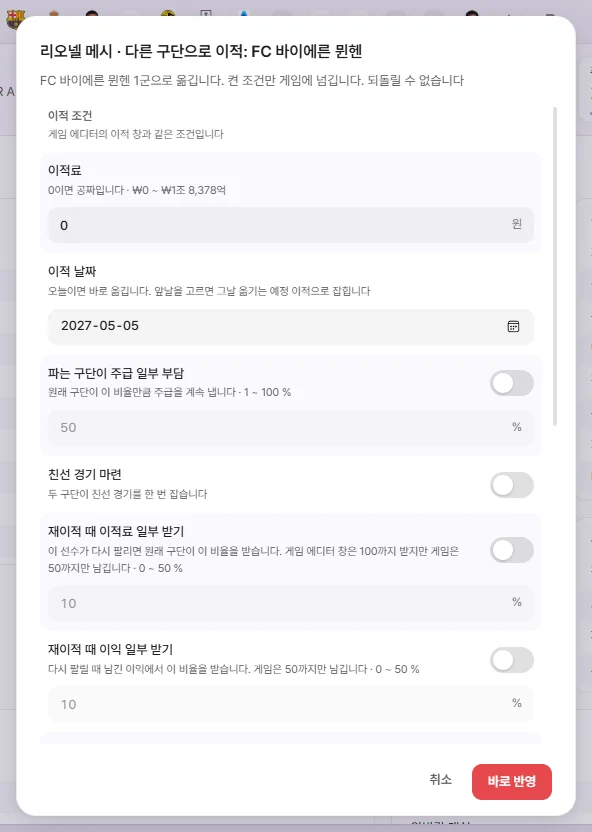
These match the terms in the In-Game Editor's transfer window. For rows with a toggle on the right, only the ones turned on are sent to the game; turned-off fields stay greyed out.
| Field | Meaning |
|---|---|
| Transfer fee | 0 means free |
| Transfer date | Today moves them immediately. Picking a future date schedules an upcoming transfer for that day (up to 4 years ahead) |
| Selling team wage contribution | The former club keeps paying this percentage (1–100%) of the player's wage |
| Arrange Friendly | Sets up one friendly match between the two clubs. |
| Percentage of next sale | If sold again, the former club receives this share. Because the game caps this at 50%, FMAX accepts 0–50% |
| Percentage of next sale profit | Receives this share of any profit made on the next sale (0–50%) |
| Buy-back clause | Lets the former club sign the player back for this fee. |
Below those is the New contract (added by FMAX) group. On its own, the In-Game Editor leaves moved players on 0 wage with no expiry date; FMAX writes whichever fields you leave on into the new contract right after an immediate move.
| Field | Initial value |
|---|---|
| Weekly wage | On, pre-filled with their current weekly wage |
| Contract expiry | On, pre-filled with their current expiry date (or 3 years ahead if already past) |
| Contract Type | On |
| Agreed Playing Time | Off |
| Squad Number | Off (1–99) |
- New contract fields apply only when moving today. If you set a future transfer date, the new contract fields are not used.
- If FMAX cannot write the new contract, a notice explains why and adds 'Please edit it directly in the contract fields'. The transfer itself has already gone through.
- Enter amounts in the currency chosen in Settings. If a value is out of range, 'Enter a number between …' appears at the bottom and the window stays open.
Player loan terms
These match the terms in the In-Game Editor's loan window.
| Field | Meaning |
|---|---|
| Loan end date | Defaults to 1 year from today. Pick any date from tomorrow up to 4 years ahead |
| Can be recalled | Toggle |
| Can play in cup matches | Toggle |
| Can play against parent club | Toggle |
| Can play against parent club’s B Team | Toggle |
| Can also play for parent club | Toggle |
| Can also play for parent club’s Reserves | Toggle |
| Can also play in parent club’s cup matches | Toggle |
| Squad Number | 1–99 |
| Optional future fee | The loaning club can sign the player permanently for this amount |
| Monthly loan fee | Amount |
| Wage contribution | 0–200%. The In-Game Editor's own window corrupts values above 128%, whereas FMAX passes the exact number you choose |
| Fee To Buy | Only used by the game when Optional future fee is on. |
| Purchase after matches | 1–27 matches |
| Competition for Purchase After Achievement | Pick from competitions in the loaning club's nation. If the loaning club achieves the milestone below in this competition, it signs the player permanently |
| Purchase After Achievement | One of Winner, Promotion, or Avoid Relegation. Unused unless a competition is chosen |
| Loan cannot be terminated | Toggle |
Staff transfers: choosing a job and terms
- Picking a club opens a list of the jobs the game offers this person (each shown alongside its team, such as First Team, B Team, or Youth team). Jobs the game doesn't allow are hidden.
- Picking a job opens the terms window with 'Fee (compensation)' (0 means free), plus Weekly wage and Contract expiry under 'New contract (added by FMAX)'.
- If you choose Manager, Player/Manager, or Assistant Manager, whoever currently holds that job steps down.
If FMAX hasn't read the person's current wage yet, the Weekly wage toggle starts turned off so they aren't accidentally moved onto a 0 wage.
Add to national team (Staff) and Move to another national team (My manager)
- Search for and choose a nation.
- A list of that nation's national teams appears (senior and youth, men's and women's).
- For staff, next choose one of the jobs the game offers. Picking Manager or Assistant Manager replaces the current holder, and depending on the job, the game may also end their club contract.
- For My manager, you skip job selection and join directly as Manager.
- Click 'Apply now' in the confirmation prompt. The game sets the contract terms.
If that national team is managed by a human manager, FMAX will not place someone into its Manager job.
Add homegrown status
- At the top, choose either 'Club' or 'Nation'.
- Pick a rule specifying how many years and at what ages they trained at that club or in that nation.
- Search by name below and click the club or nation to open the confirmation prompt.
| Rule |
|---|
| 3 years, ages 15–21 |
| 3 years before age 21 |
| 3 years, ages 0–23 |
| 3 years, ages 0–17 |
| 3 years, ages 15–21 (excluding loans) |
| 4 years, ages 0–19 |
| 2 years, ages 15–21 |
| 1 year, ages 0–19 |
| 1 year, ages 15–21 |
If the player already has a homegrown record for that club or nation, FMAX leaves it as is and lets you know.
Count as EU player
Only current member nations of the EU, EEA, and EFTA (European Union, European Economic Area, and European Free Trade Association) are listed, excluding any nationalities the player already holds. Picking a nation adds it as an extra nationality marked 'Not Eligible For Nation'.
- Under EU player rules, they count as a European player.
- They cannot be called up to that nation's national team.
- League-specific EU rules and work-permit checks are still handled by the game as normal.
Change nationality and Change city of birth
Search by name and choose from the list; their current nationality or city is excluded. Because many cities share the same name, each city is listed alongside its nation. Changing primary nationality leaves their Other nationalities list and international eligibility records intact.
Change retirement date
A date field opens with their current retirement date filled in. You can pick any date from tomorrow onwards; choose a date and click 'Change' to open the confirmation prompt. To block retirement altogether, use 'Prevent retirement' in Live tweaks.
Applying to multiple people at once
The actions below can be applied to several people at once—none require extra choices, and each affects only that individual.
- Players: Remove all injuries, Remove all bans, Remove all unhappiness, Freeze attributes, Unfreeze attributes, Grant work permit, Remove work permit, International retirement, Cancel international retirement, Mark military service done, Mark military service exempt, Clear military service record
- Staff: Change to female, Change to male
There are three ways to run them:
- Select multiple people in a list and right-click → choose from the '⚡ Quick actions' group.
- Right-click a club → '⚡ All club players' (clears injuries, bans, or unhappiness). This runs on every player at the club, and you can select multiple clubs at once.
- Add to a preset: You can pick 'Game editor actions (apply immediately)' as a preset action so it runs together with field edits in one go (Presets).
Whichever way you start it, a single 'Apply "<action>" to N people' confirmation prompt appears. FMAX runs the action one person at a time, showing progress as 'Applying in-game editor action: N / total', and leaves anyone already in that state untouched. When finished, a notice shows how many succeeded and failed.
When something doesn't work
If an action fails, a '…: Failed' notice explains why. Here are the messages you're most likely to see:
| Notice | What it means and what to do |
|---|---|
| Not available right now | FMAX isn't connected to the game or is busy writing something else. Wait until connected and try again |
| Not loaded from the game yet | The tab hasn't read values from the game yet. Try again from the tab once loaded |
| Already in that state—nothing to change | The option chosen from the right-click menu is already in that state |
| The game rejected the transfer | Club rules, squad registration limits, or other transfer conditions in the game may have blocked it |
| Cannot transfer or loan to their current club | You picked the club they are already at |
| This person has no contract to terminate | They are already a free agent or unemployed |
| There are multiple human managers, so FMAX couldn’t tell which one to use | Pick your manager first using 'Choose my manager' at the top of the menu |
| The game screen isn’t ready yet | Open the relevant screen in the game once, then try again |
| The game is not accepting this action right now | Applies to team cohesion, tactical familiarity, and national team morale. See Team tab menu above |
| The action ran in the game—reload to check the result | The game ran the action, but FMAX couldn't verify the outcome. Click 'Reload from game' on the tab |
For other issues, see Troubleshooting.